
How to use this page
- Work through Tasks 1–6 and tick each step as you complete it. Your progress and answers are saved in this browser automatically.
- Wherever you see
 Screenshot, capture your lab progress and attach the screenshot right on this page. Add a short explanation for each.
 - Answer the Task 7 questions, then use Print / Save as PDF to export your answers and screenshots as one submission file.
- Remember to delete your lab resources after capturing everything.
Lab Objectives and Architecture reference
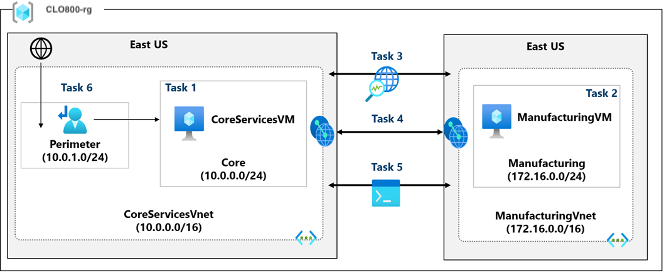
Lab scenario: Your organization separates core IT services from other departments, like manufacturing. However, sometimes these segmented areas need to communicate. In this lab, you'll set up connectivity between these isolated networks. This approach is commonly used to separate production from development environments or to isolate different subsidiaries.
In this lab, you will:
- Task 1 — Create a core services virtual machine and virtual network 15 pts
- Task 2 — Create a virtual machine in a different virtual network 15 pts
- Task 3 — Use Network Watcher to test the connection between virtual machines 10 pts
- Task 4 — Configure virtual network peerings between virtual networks 15 pts
- Task 5 — Use Azure PowerShell to test the connection between virtual machines 10 pts
- Task 6 — Create a custom route 15 pts
- Task 7 — Summary Questions & Review 20 pts
You will build this topology across Tasks 1–6.
Task 1: Create a core services virtual machine and virtual network 15 pts
In this task, you create a core services virtual network with a virtual machine.
-
Setting Value Subscription your subscription Resource group <yourName>-clo800-f67-rgVirtual machine name <yourName>-CoreServicesVMRegion (US) East US Availability options No infrastructure redundancy required Security type Standard Image Windows Server 2019 Datacenter: x64 Gen2 Size Standard_D2s_v3Username localadminPassword Provide a complex password Public inbound ports None -
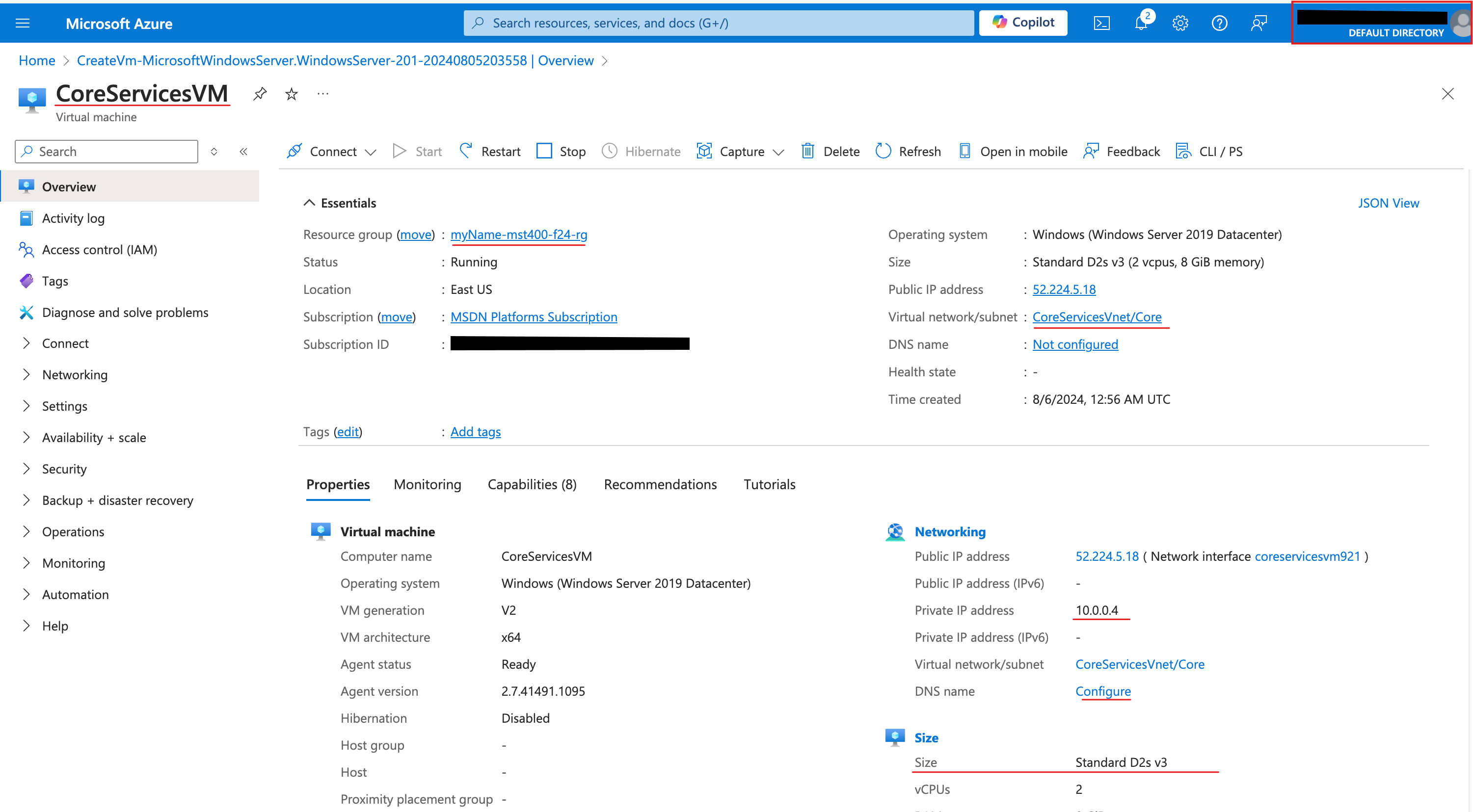
Setting Value Name CoreServicesVnet(Create new)Address range 10.0.0.0/16Subnet Name CoreSubnet address range 10.0.0.0/24 - Screenshot must show your Odl_user account, the CoreServicesVM virtual machine overview showing the resource group, region, and Running status
Task 2: Create a virtual machine in a different virtual network 15 pts
In this task, you create a manufacturing services virtual network with a virtual machine.
-
Setting Value Subscription your subscription Resource group <yourName>-clo800-f67-rgVirtual machine name <yourName>-ManufacturingVMRegion (US) East US Security type Standard Availability options No infrastructure redundancy required Image Windows Server 2019 Datacenter: x64 Gen2 Size Standard_D2s_v3Username localadminPassword Provide a complex password Public inbound ports None -
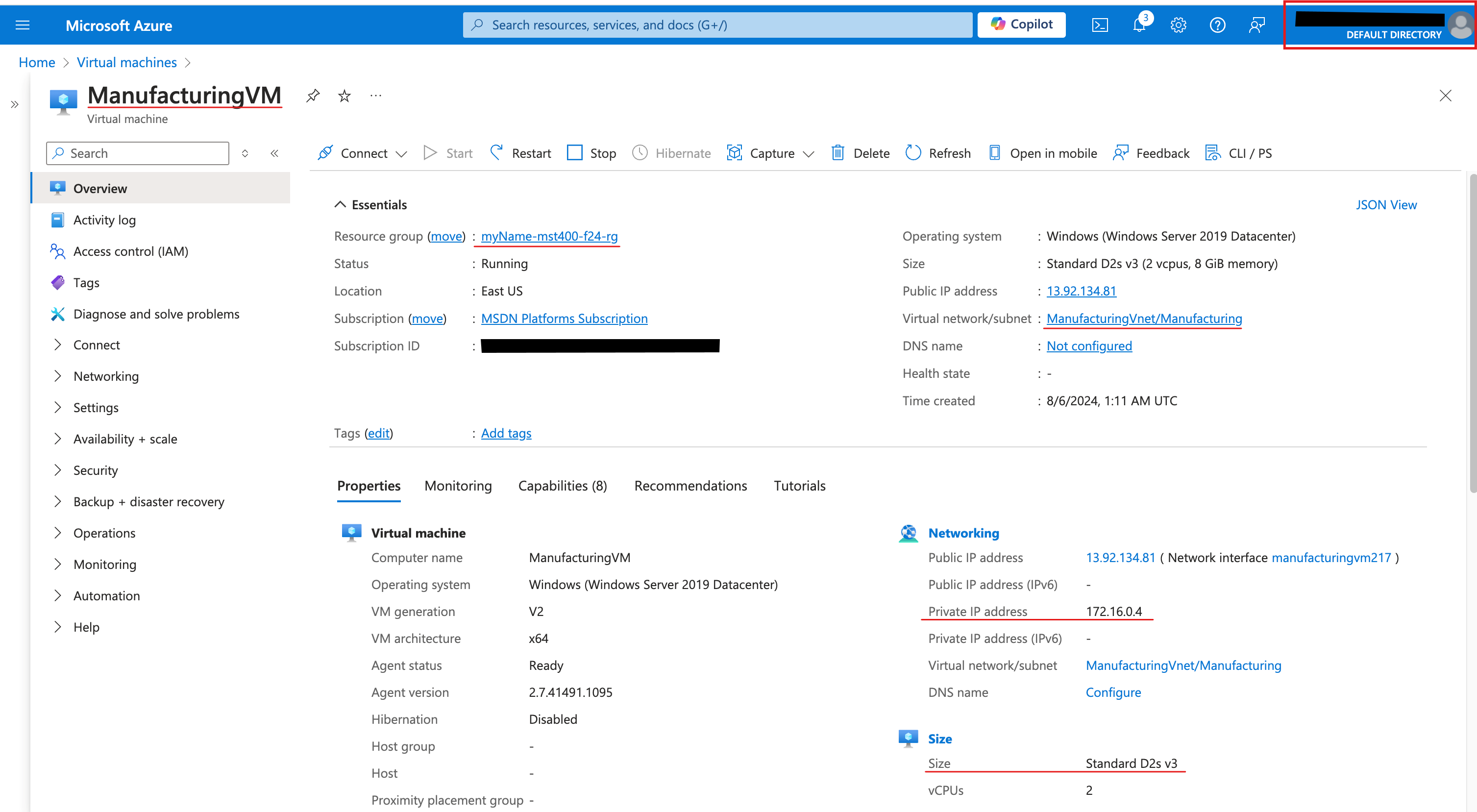
Setting Value Name ManufacturingVnetAddress range 172.16.0.0/16Subnet Name ManufacturingSubnet address range 172.16.0.0/24 - Screenshot must show your Odl_user account, the ManufacturingVM virtual machine overview showing the resource group, region, and Running status
Task 3: Use Network Watcher to test the connection between virtual machines 10 pts
In this task, you verify that resources in peered virtual networks can communicate with each other. Network Watcher will be used to test the connection. Before continuing, ensure both virtual machines have been deployed and are running.
-
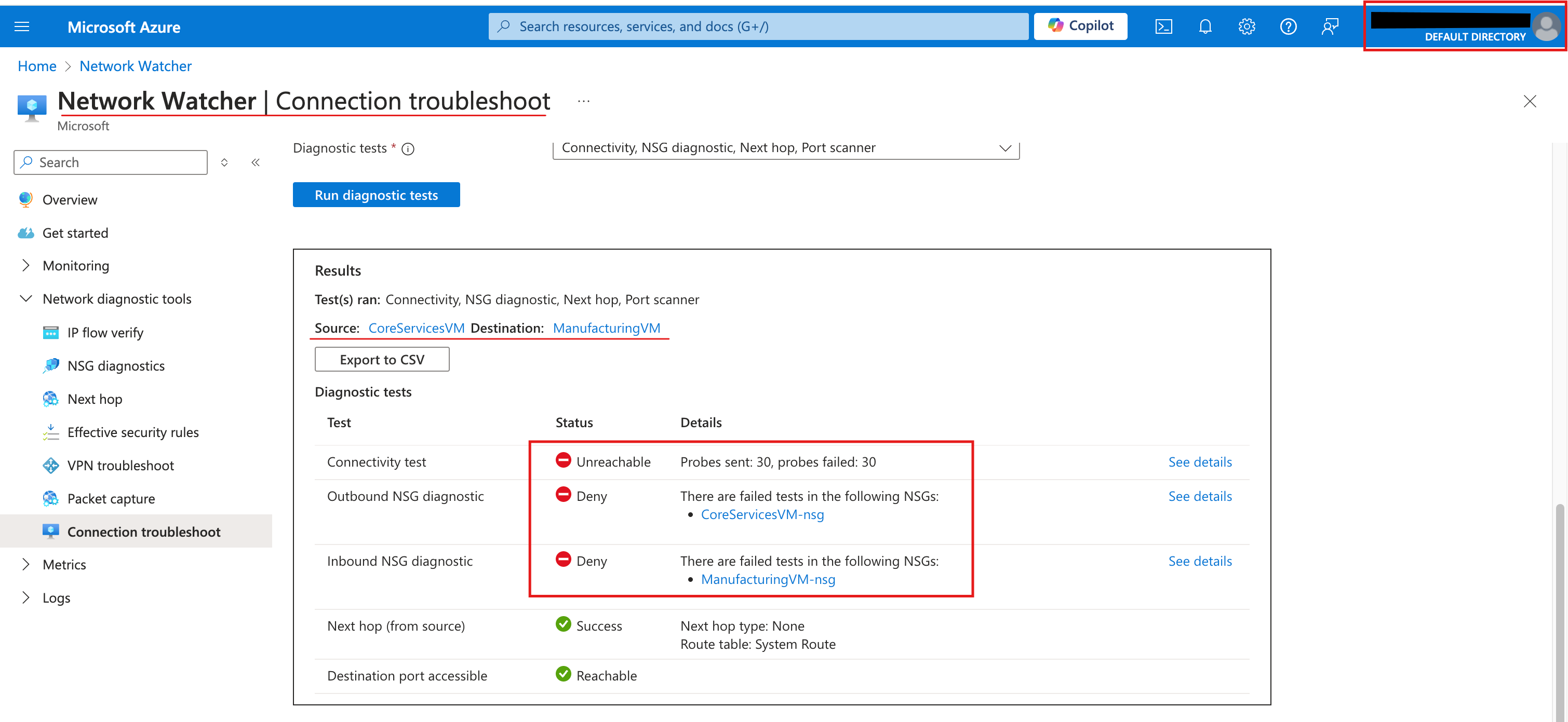
Field Value Source type Virtual machine Virtual machine <yourName>-CoreServicesVMDestination type Virtual machine Virtual machine <yourName>-ManufacturingVMPreferred IP Version Both Protocol TCP Destination port 3389 Source port Blank Diagnostic tests Defaults - Screenshot must show your Odl_user account, the Network Watcher Connection troubleshoot results showing the Connectivity test (Unreachable) between CoreServicesVM and ManufacturingVM
Task 4: Configure virtual network peerings between virtual networks 15 pts
In this task, you create a virtual network peering to enable communications between resources in the virtual networks.
-
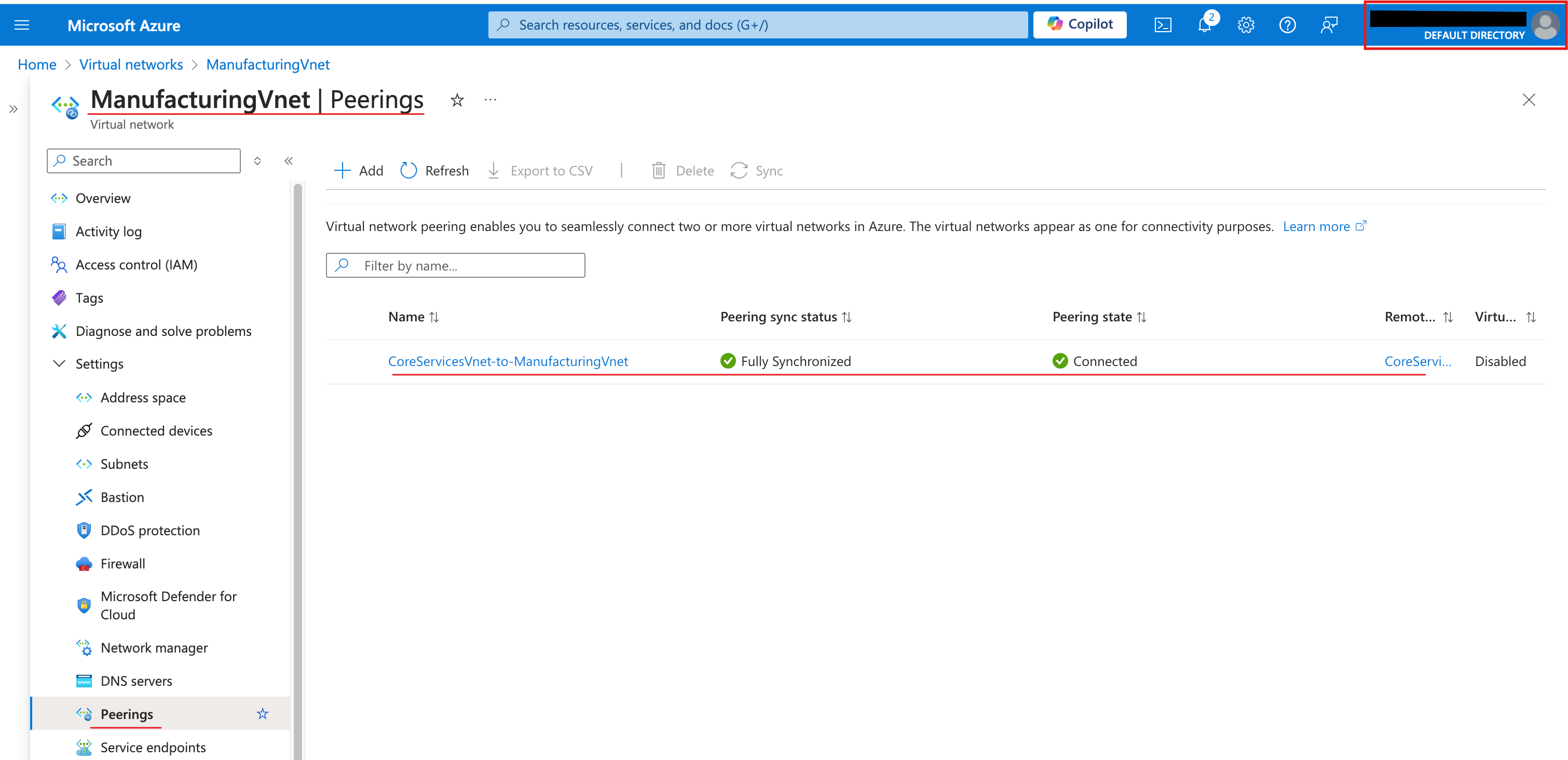
Parameter Value Peering link name CoreServicesVnet-to-ManufacturingVnetVirtual network ManufacturingVM-net(<yourName>-clo800-f67-rg)Allow ManufacturingVnet to access CoreServicesVnet selected (default) Allow ManufacturingVnet to receive forwarded traffic from CoreServicesVnet selected Peering link name ManufacturingVnet-to-CoreServicesVnetAllow CoreServicesVnet to access the peered virtual network selected (default) Allow CoreServicesVnet to receive forwarded traffic from the peered virtual network selected - Screenshot must show your Odl_user account, the ManufacturingVnet peerings page showing the ManufacturingVnet-to-CoreServicesVnet peering with Peering status Connected
Task 5: Use Azure PowerShell to test the connection between virtual machines 10 pts
In this task, you retest the connection between the virtual machines in different virtual networks.
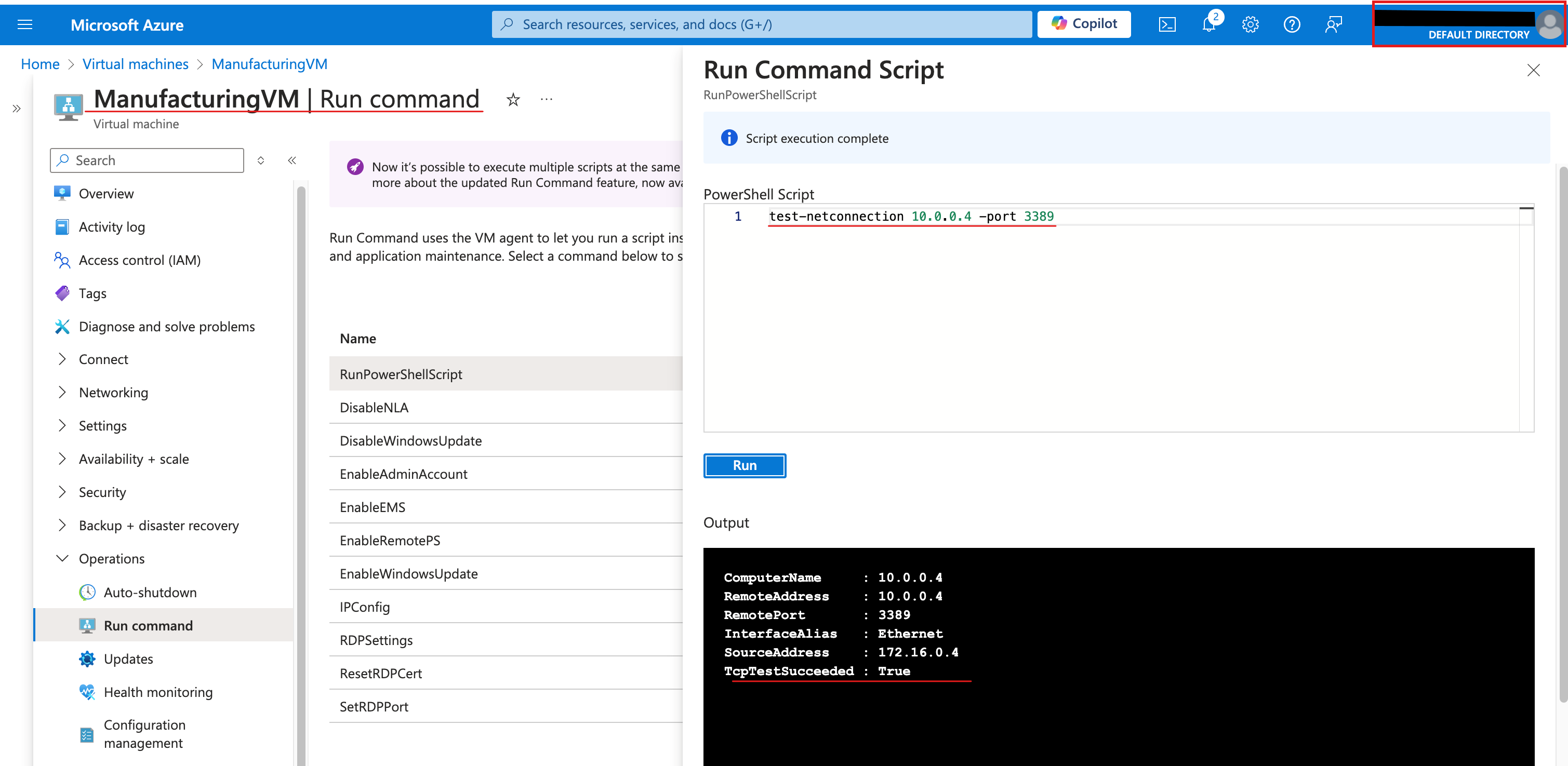
- Screenshot must show your Odl_user account, the Run command output showing the Test-NetConnection result (TcpTestSucceeded: True) to the CoreServicesVM private IP on port 3389
Task 6: Create a custom route 15 pts
In this task, you want to control network traffic between the perimeter subnet and the internal core services subnet. A virtual network appliance will be installed in the Perimeter subnet and all inbound traffic should be routed there.
-
Setting Value Name perimeterSubnet address range 10.0.1.0/24 -
Setting Value Subscription your subscription Resource group <yourName>-clo800-f67-rgRegion East US Name rt-CoreServicesPropagate gateway routes No -
Setting Value Route name PerimetertoCoreDestination type IP Addresses Destination IP addresses 10.0.0.0/24(Core subnet)Next hop type Virtual appliance (notice your other choices) Next hop address 10.0.1.7(future NVA) -
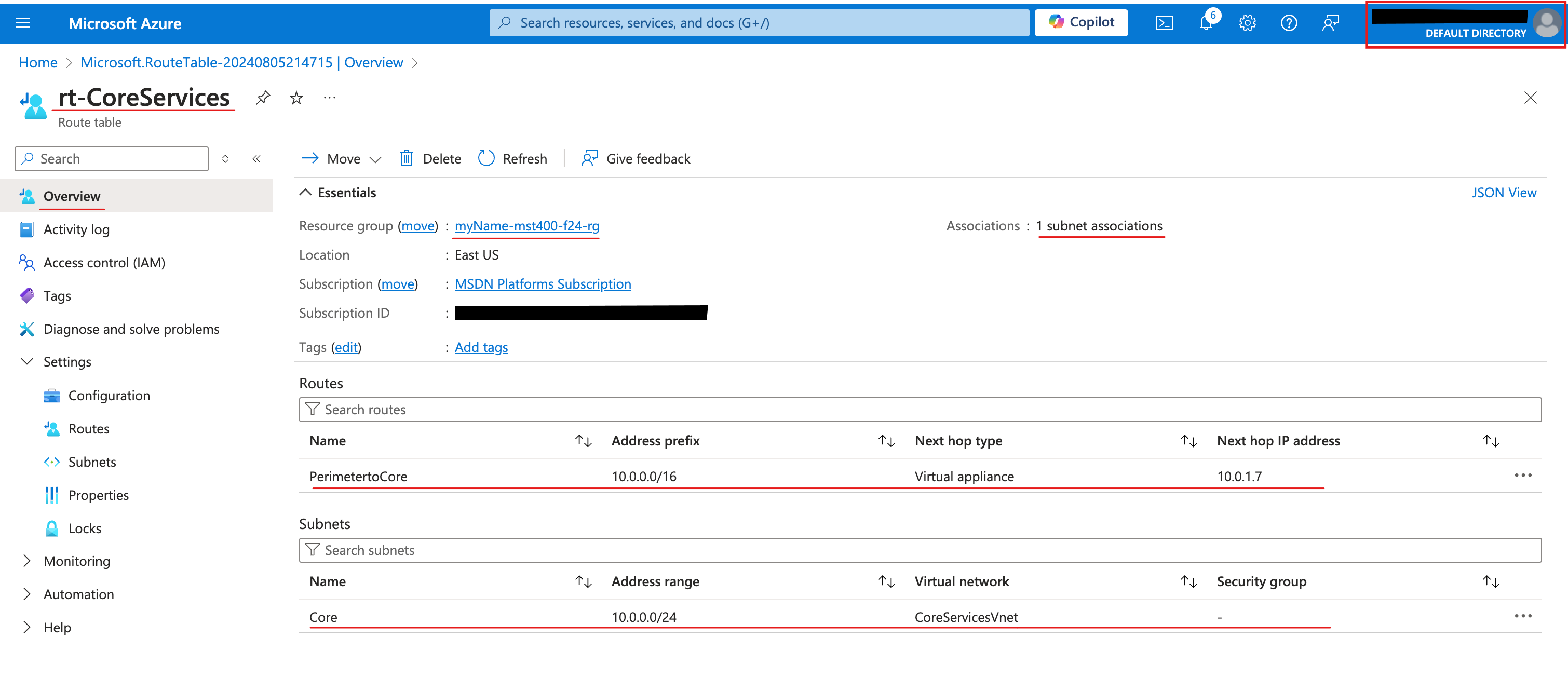
Setting Value Virtual network CoreServicesVnetSubnet Perimeter - Screenshot must show your Odl_user account, the rt-CoreServices route table showing the PerimetertoCore route and the subnet association
Task 7: Summary Questions & Review 20 pts
Minimum 2-3 sentences each — original thinking, your own words!
Sample screenshots reference
These screenshots are just samples. Your screenshots may vary, but they should include similar details underlined.
Clean up your resources
Remember to delete any Azure resources created for this lab after capturing all your information and screenshots. Removing unused resources ensures you will not have unexpected charges and helps you manage your Azure credit for the course. Delete all resource groups except the Odl-Seneca-lab default resource group.
Your submission preview
Screenshots you attach above and your Task 7 answers appear here. This is exactly what prints/exported as your PDF.
CLO800 Lab 02 - Hybrid Network Connectivity
Name: . Account: ·
Professor: Dr. Kazemi